
Connect your Shopify store and every conversation shows the customer's orders right next to it. Your team can look up, change, refund or cancel orders without leaving the Inbox, and your AI agent can answer questions such as "where is my order?" on its own.
You connect a store by installing the WeReply AI app from the Shopify App Store.
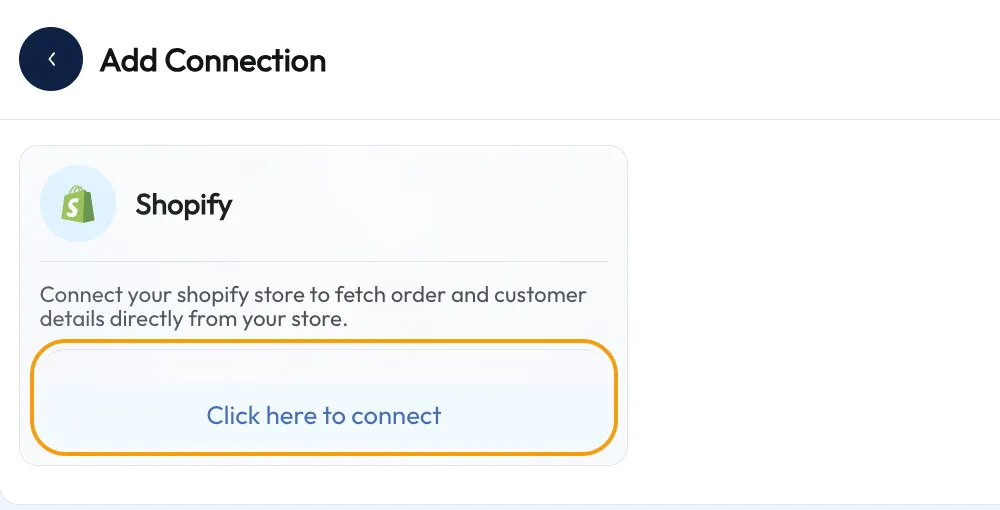
The app is being added to the Shopify App Store. Until it is listed, the button in WeReply shows “coming soon”; contact us and we will send you the install link.
Did you find WeReply AI in the Shopify App Store first? Install it there; you then go through the same login and workspace step.
When you open a conversation, WeReply looks up the customer's orders by email address. For customers who write on WhatsApp it also searches by phone number; those orders carry the badge Matched by phone number.
The Order details show the newest order: order number, date, total, payment and fulfillment status, the ordered items, the shipping method and, once shipped, the tracking number with a Track shipment link. Click the order number to open it in your Shopify admin. Older orders are under Previous orders.
Is the customer asking about another order, for example one placed with a different email address? Type the number in Find another order, e.g. #1234 and click Search.
Click Edit order under the order details. Depending on the order and your permissions you can choose:
Every change is saved in Shopify right away and noted in the ticket, so your colleagues can see who did what.
Once a store is connected, your AI agent can look up a customer's orders (by email
address, order number, or on WhatsApp by phone number) and tell them the status and
tracking details. It can also look up product information from your store. The
same applies to AI drafts. Quick replies can fill in
[last_order_number] and [last_order_tracking_url] for you; see
Quick Replies.
Open Apps → WeReply AI in your Shopify admin to see your workspace at a glance: open conversations, conversations not assigned yet, conversations answered by AI this month and AI drafts this month. From there, Open inbox and Settings take you straight into WeReply.
If you started with WeReply through the Shopify App Store, your subscription can run through Shopify. You choose or change your plan in your Shopify admin (Choose a plan or Change plan on the app page), and your invoices are in your Shopify admin too. In WeReply, Settings → Subscription shows how you are billed and has a Change plan in Shopify button.
Did you sign up with WeReply directly? Then your WeReply subscription already covers the Shopify connection, and you pay nothing extra through Shopify.