There are two ways to bring email into WeReply: sign in with Microsoft for an
Outlook or Microsoft 365 mailbox, or add an Email channel for your
own domain (this is also the way for Gmail and Google Workspace). Afterwards you can
import your earlier conversations, so your team and the AI can see what was
discussed before.
Connect Outlook or Microsoft 365
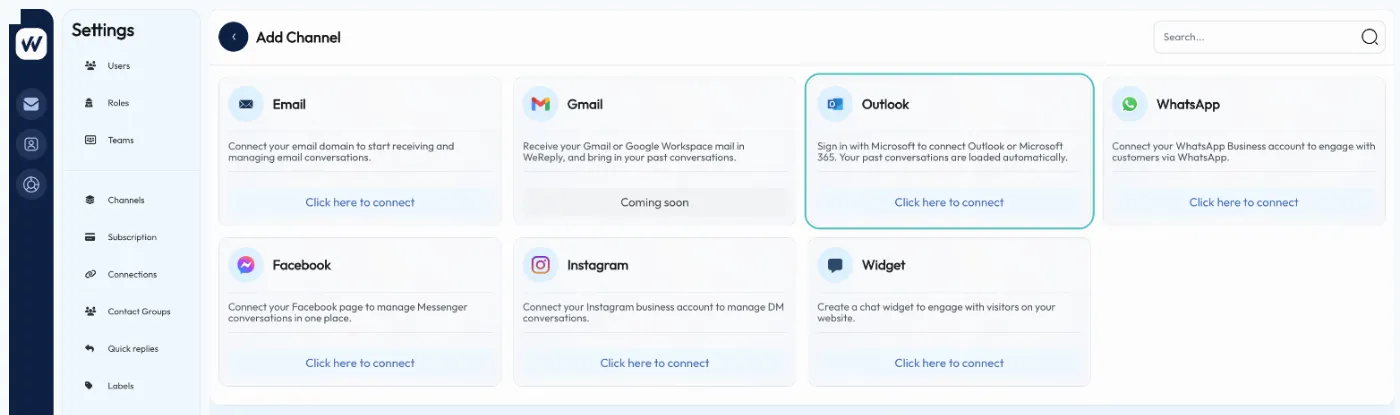
Go to Settings → Channels → Add channel.
On the Outlook card, click Click here to connect.
Sign in with your Microsoft account and allow WeReply access to your mailbox.
That's it. The channel is created with your email address as its name, and you
land on the history page while your past conversations are loaded.
From then on WeReply reads new mail in the mailbox every minute and sends your
replies from it, so they also appear in your Outlook Sent items. Replies
typed in Outlook itself are added to the ticket too.
Settings › Channels › Add channel: choose Outlook to sign in with Microsoft.
Does sign-in stop with a message about your organisation? Then the Microsoft 365
admin of your company has to approve WeReply first. Ask them, and try again.
A new Outlook channel starts with AI Response off. Open the
channel in Settings → Channels to change its name, choose an
agent, or switch the AI on.
Your history is loaded automatically
Right after connecting, the last 12 months of your inbox and sent items are
loaded as closed tickets (or less, if your
retention period is shorter). Need older
mail? Open Import email history for the channel, pick a period under
Load more history and click Load history. Mails that
are already in WeReply are skipped, so an overlapping period is no problem.
Using a shared mailbox (support@, info@)
Open the Outlook channel in Settings → Channels.
At Do you use a shared address like support@ or info@?, fill in
that address and click Save.
New mail to that address now arrives in WeReply, and its history is loaded.
Your Microsoft account needs access to the shared mailbox. If WeReply can't open
it, ask your Microsoft 365 admin for access and then click
Sign in with Microsoft again. Leave the field empty to use only your
own mailbox.
When the sign-in expires
If the channel shows Sign-in expired, open it and click
Sign in with Microsoft again. Nothing is lost.
Connect an email address on your own domain
For this you need access to the DNS settings of your domain.
Go to Settings → Channels → Add channel and choose
Email.
Fill in the Channel info and AI settings, then click
Next step.
Enter your Domain (for example yourshop.com).
Under Receive emails by, choose:
Email forwarding — you keep your current mailbox and
forward its mail to an address WeReply gives you. This is the usual choice.
Mail exchange — WeReply receives all mail for the domain
directly. Only use this if the domain has no other mailbox.
At Send response from, enter the part before the @, for example
support. Optionally adjust the Inbound spam filtering.
Click Next step. WeReply shows the DNS records to add at your
domain registrar. With forwarding, it also shows the address to forward your mail
to.
Add the records, then click Verify DNS records. DNS changes can
take a while; until then you can use Save as concept and verify
later from the channel.
A channel with status Concept is not active yet. Verify the DNS
records to start receiving and sending mail.
Gmail and Google Workspace
Choose Email and Email forwarding as above. After
saving you get a WeReply address. In Gmail, go to
Settings → Forwarding and POP/IMAP → Add a forwarding address, paste
the address and confirm. The confirmation mail from Google shows up in your WeReply
Inbox.
Import email history from a file
For an Email channel you can upload an export of your mailbox. Each conversation
becomes one closed ticket, with its customer and messages.
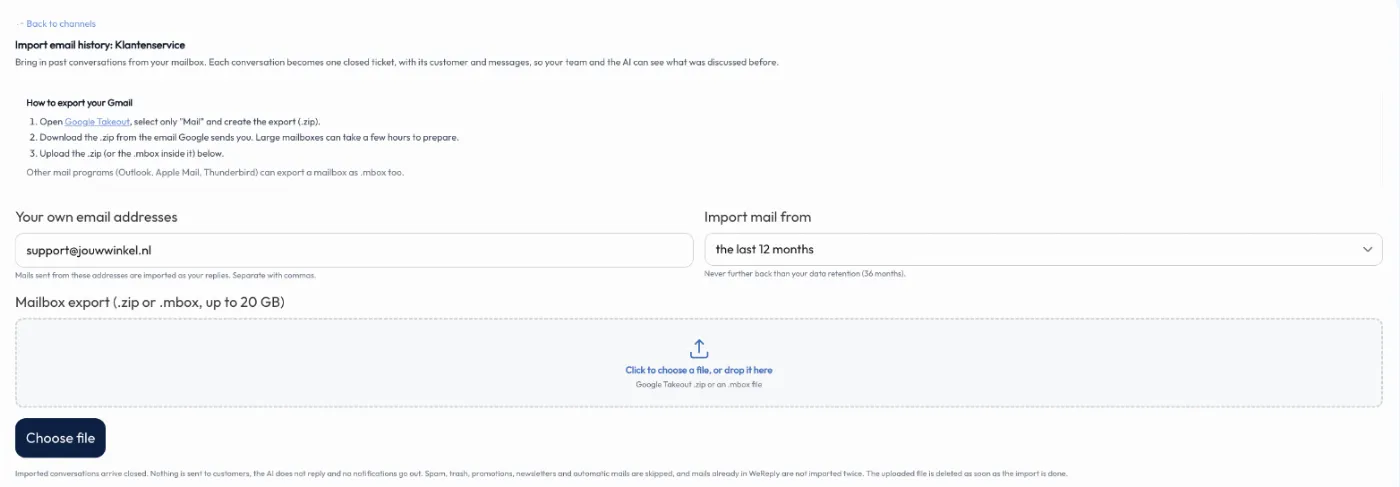
Import email history: enter your own addresses, choose a period and upload the export.
Export your Gmail with Google Takeout: select only Mail and create the
export. Download the .zip from the email Google sends you. Large mailboxes can take
a few hours to prepare. Other mail programs (such as Outlook, Apple Mail or
Thunderbird) can export a mailbox as an .mbox file.
In Settings → Channels, click the import icon on your email
channel (Import email history).
At Your own email addresses, enter the addresses you send from,
separated by commas. Mails from these addresses are imported as your replies.
At Import mail from, choose the last 3, 6, 12, 24 or 36 months, or a
custom period. You can't go further back than your retention period.
Choose the .zip or .mbox file (up to 20 GB) and click Import.
Under Imports you follow the progress: uploading, waiting,
importing, done. When it's done you see how many conversations and messages were
imported and how many were skipped. You can cancel a running import.
What happens during an import
Imported conversations arrive closed. Nothing is sent to customers, the AI does
not reply and no notifications go out.
Spam, trash, promotions, newsletters and automatic mails are skipped.
Mails that are already in WeReply are not imported twice.
The uploaded file is deleted as soon as the import is done.
With the history imported, your team sees what a customer asked before as soon as
they write again.