
An AI agent answers customer questions for you, or writes draft replies that your team checks before sending. This article explains how to set up an agent, teach it about your business, and use it in the Inbox.
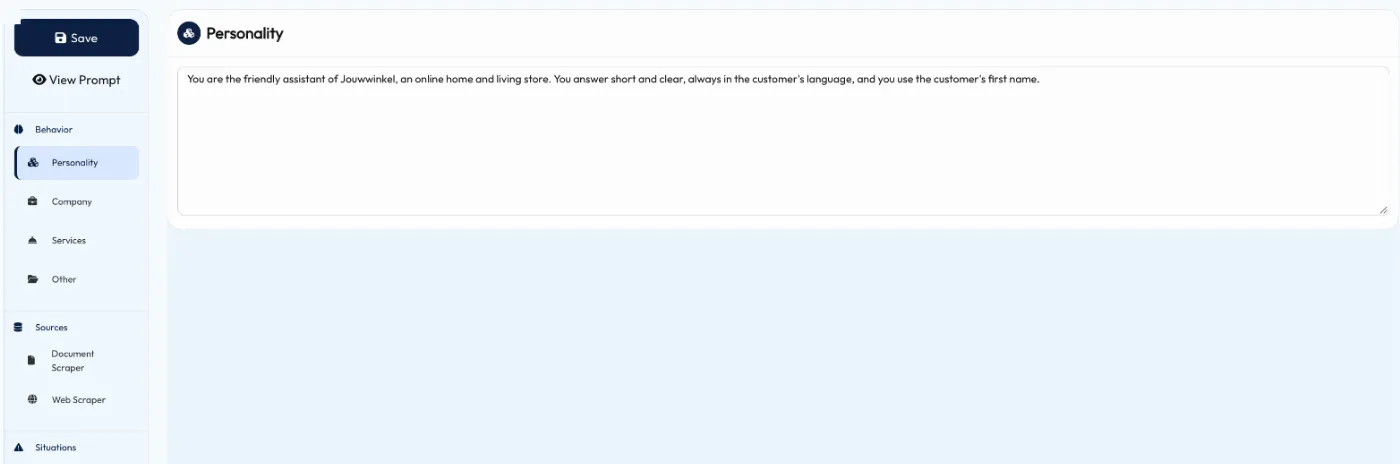
Go to Settings → Agents. Click Create a new AI Agent to start from scratch, or pick one of the templates. Click an agent to open its settings. The menu on the left has four parts: Behavior, Sources, Situations and Other.
Upload documents for the agent to learn from, such as FAQs, return policies or product manuals. Supported file types are PDF, DOC, DOCX, TXT and RTF, up to 10 MB per file.
Add your website: enter the root domain or your sitemap and click Fetch links, then Start crawling. Use Automatically Crawl to revisit the pages daily, weekly, monthly or quarterly, so the agent keeps up with changes on your site. Click View learned data on a page to see exactly what the agent learned from it.
Under Safety Filters you tell the agent how to respond when a message touches a sensitive topic: hate speech, threatening hate, self-harm, sexual content, minor safety, violence and graphic violence. For example: stay calm, don't go into it, and hand the conversation to your team.
Short questions with the right answer, such as your return period or shipping costs. The agent uses them when a customer asks about that topic. Add them with Add Question & Answer, or save them straight from the Inbox (see below).
Rules for how the agent writes and works, grouped in categories. For example: always ask for the order number, or always address customers informally. Click Add category to start.
Curious what the agent gets to see? Click View Prompt at the top of the agent. It shows the full instructions and which tools the agent can use, such as looking up Shopify orders when a store is connected.
An agent does nothing until you link it to a channel. Go to Settings → Channels, open the channel and, under Agent configuration, select the agent and switch on:
Escalation and the other options are explained in Channels & Connections.
When the AI writes a draft, it also looks at how your team answered similar customer messages before, and follows that tone and those usual solutions. You don't have to train anything for this: it works from the replies your colleagues send in WeReply.
This applies to drafts, which a person checks. Answers the AI sends by itself are based on the agent's settings and sources.
When you used Improve reply to correct the AI, WeReply asks Remember for all customers?
Wrote a good reply yourself? Choose Remember this reply in the AI menu, and the AI takes the knowledge from it for future customers. If the new rule replaces something the AI learned before, you can see it; replaced items are archived and can always be restored.