
WeReply lets you decide who has access to your workspace, what each person may do, and which conversations they see. You'll find this under Settings → Users, Roles and Teams. This article also covers sign-in security and how long conversations are kept.
The Users page lists everyone with access to your workspace.
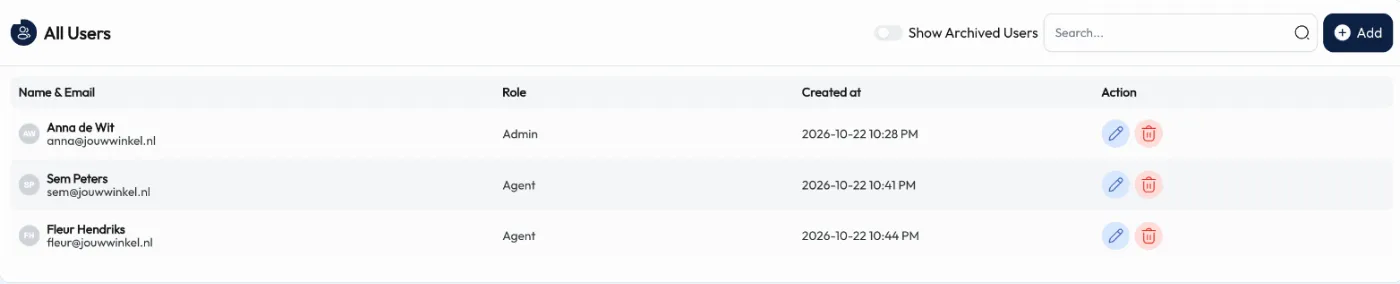
Removed users are archived; use Show Archived Users to find them and Restore to bring them back.
A role decides what a user may see and do. For each role you switch permissions on or off, for example:
Create a role with Add, give it a name and tick the permissions it needs.
Teams group users, for example by language, store or shift. You can:

Change your password under your profile picture → Profile Settings → Update Password. A password needs at least 10 characters, with upper and lower case letters, a number and a symbol. Passwords that have appeared in known data leaks are refused.
You can be logged in on one computer and one phone at the same time. If you log in on another computer, WeReply first asks whether you want to continue there; the other computer is then logged out. Working with colleagues? Give each of them their own user.
When your account is used on a device you never logged in from before, you get an email with the device, the masked IP address and the time. Wasn't that you? Change your password right away and log out everywhere.
Your Profile Settings show Where you're logged in: each computer and phone with the browser and when it was last active. Click Log out everywhere else to end all sessions except the one you're using.
You decide how long WeReply keeps your data.
Conversations, attachments, and contacts without conversations are deleted automatically and permanently after this period. The maximum is 3 years. The retention period also limits how far back you can import email history.